Documentation

XML Table Converter /
TableXML User Guide

This tool consists of two core processes: "Extracting XML data to Excel (STEP 1)" and "Writing edited Excel back to XML (STEP 2)".

【STEP 1】 Extracting XML Data to Excel

Steps to generate an editable Excel file from XML data such as log files.

1Selecting and Executing Files

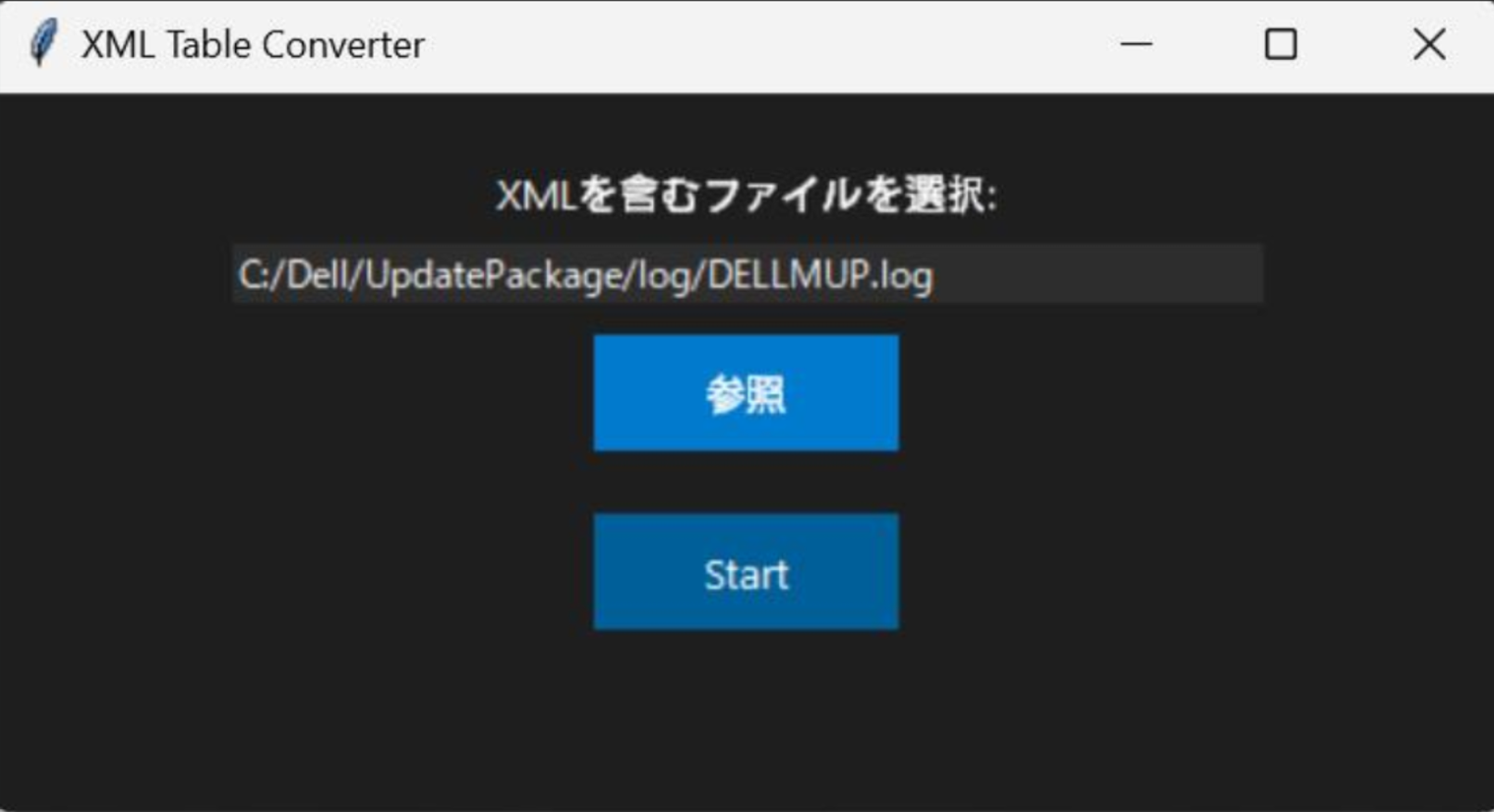
  1. Launch the "XML Table Converter" application.
  2. Click the "Browse" button and select the file containing XML data (e.g., a log file).
  3. Ensure the file path is displayed in the text box, then click the "Start" button.
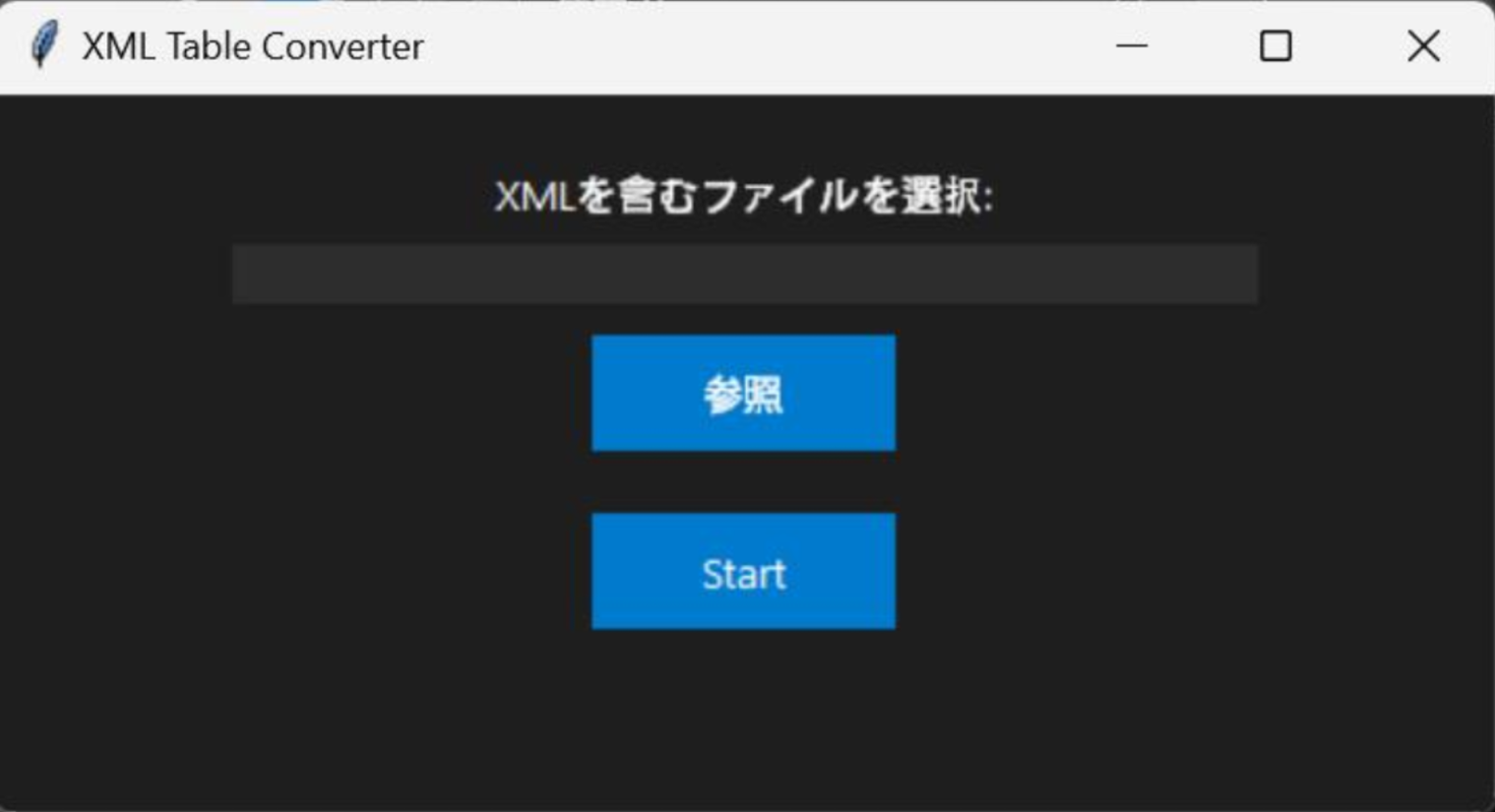
Select file interface Execution interface

2Checking the Generated Files

When the process is complete, a dialog will appear. Check the contents and click "OK". At this point, the following files will be automatically generated in your working directory:

Generated File Description
Edit.xlsx Main Excel file for data editing (*Used in the next step)
Ref.xml Backup (copy) file for reference
output.xml Recommended filename for the final output
[Note] Open the generated Edit.xlsx, make all necessary additions, modifications, and edits to the data, and then save the file.
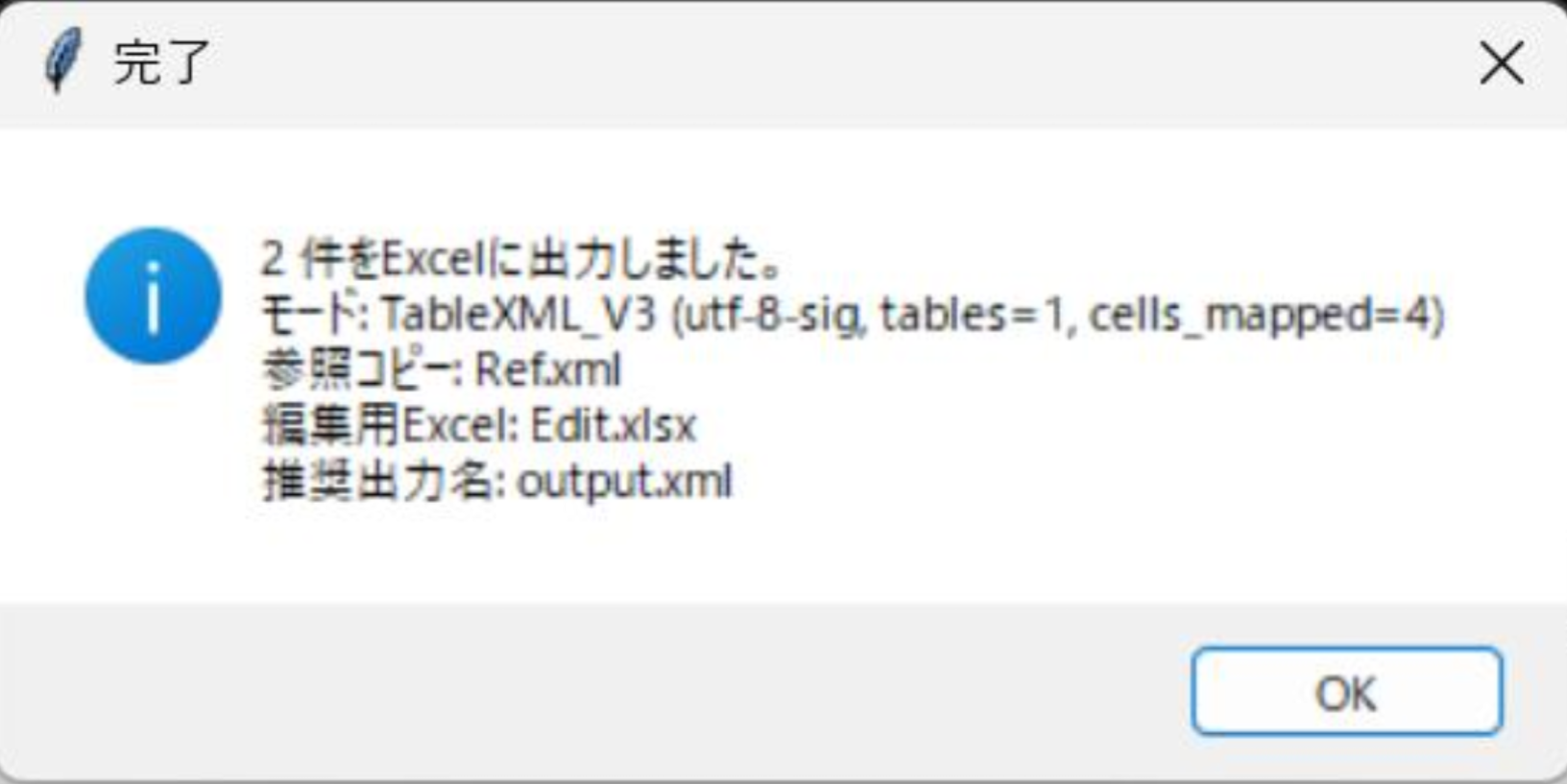
Dialog showing generated files

【STEP 2】 Exporting from Excel to XML

Steps to output the edited Excel data back into the final XML format.

3Specifying Files

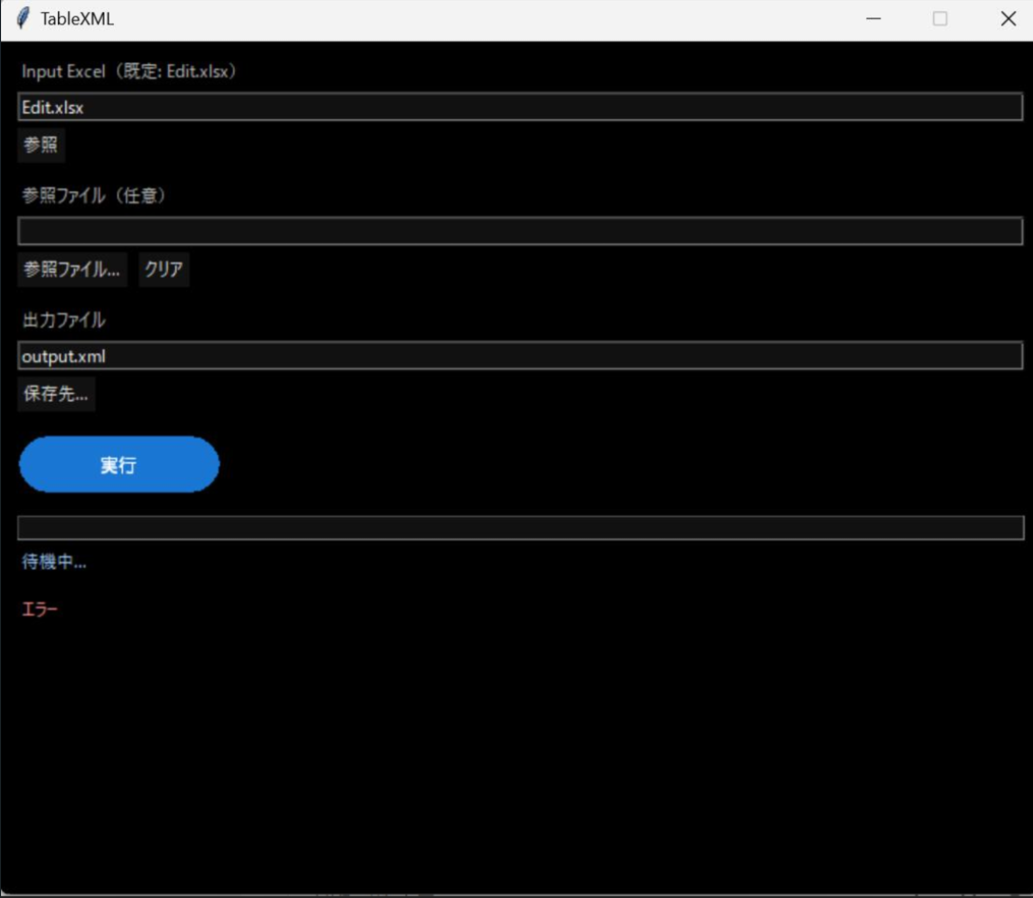
Launch "TableXML" and check/configure the following three items:

  • Input Excel (Default: Edit.xlsx)
    Ensure the edited Edit.xlsx file is selected.
  • Reference File (Optional)
    Usually, this can be left blank.
  • Output File
    Ensure output.xml is specified by default (you can change the destination by clicking "Save as...").
[Important] If the data linking logic does not work as expected, load the source PDF file (or equivalent) used as the index here.
File specification interface in TableXML

4Execution and Completion Check

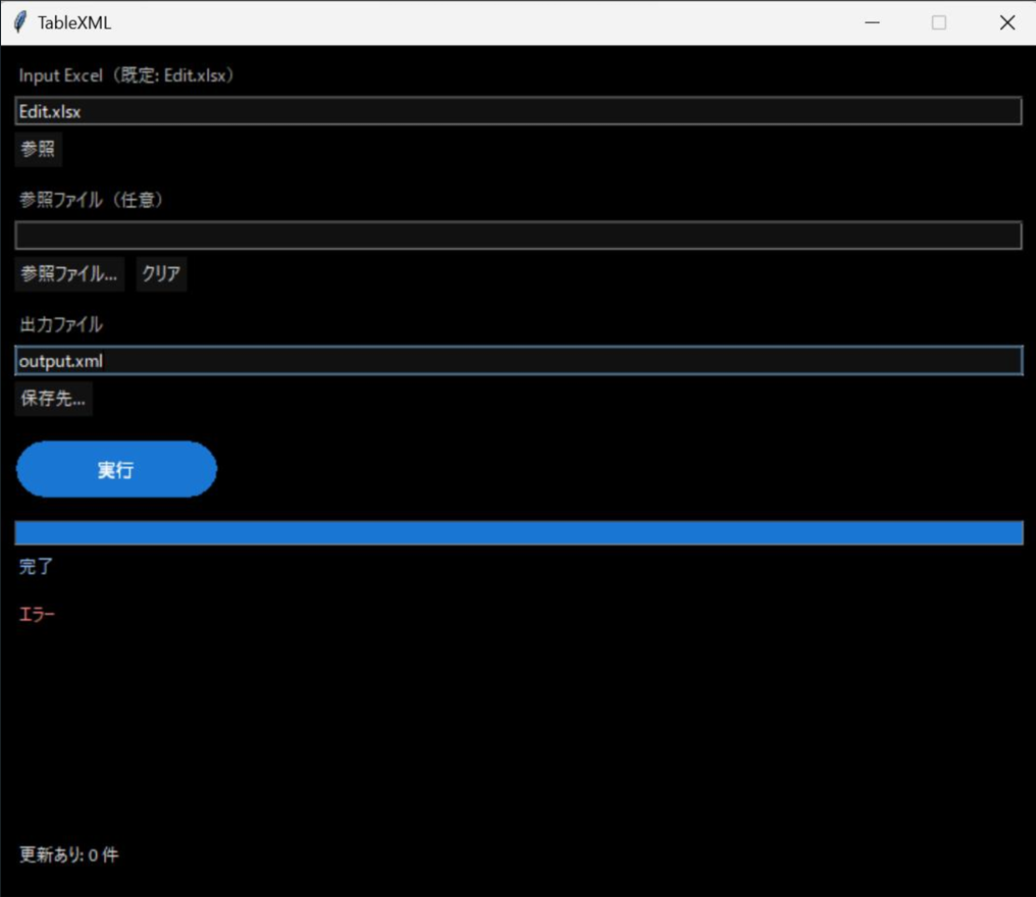
  1. If there are no issues with the settings, click the blue "Execute" button.
  2. Success is confirmed when the status changes from "Waiting..." to "Completed" and the blue progress bar reaches the right end.
  3. At the bottom of the screen, the number of updated records will be displayed (e.g., "Updates: X items").
  4. Verify that nothing is displayed in the "Error" section, and that output.xml has been generated in the specified output destination to complete the entire process.
Execution complete and progress bar